
CRMX Workflow Logs Can Now Trace Contacts, Deals, and Tasks
CRMX workflow logs can now filter and search activity by contact, opportunity, or task, even when no contact is attached to the record.

CRMX can now show workflow enrollment and execution activity for contacts, opportunities, and tasks in the same investigation view.
That matters because an opportunity or task can now enter a workflow without an associated contact. Instead of trying to find a person who may not exist—or opening several records until something matches—you can filter the workflow history by object type and search for the record that actually ran.
The update was published in the official product changelog on November 20, 2026. The current official Execution Logs and Enrollment History guide confirms the subaccount path and the diagnostic role of these workflow surfaces.
The practical change is simple: when a follow-up or internal process behaves unexpectedly, CRMX gives you a cleaner way to start with the right record.
It still does not turn a workflow row into proof that the final business result happened. A recorded action can tell you what CRMX processed. You should still verify the message, appointment, task, opportunity, owner, or downstream result that was supposed to change.
What changed in CRMX workflow history
The new release expands both Enrollment History and Execution Logs beyond contact-only investigation.
Filter activity by object type
Inside a workflow, you can now choose:
- All objects for a combined view;
- Contacts for person-level activity;
- Opportunities for deal-level activity; or
- Tasks for work-item activity.
The record column identifies the record type alongside its name. That extra context is useful when the same words appear in several places—for example, when an opportunity and a task both contain the name of a service or client.
Search for the record that actually enrolled
The search field adapts to the selected object type. Choose Opportunities and search for the deal. Choose Tasks and search for the work item. Choose Contacts when the person is the correct investigation anchor.
This reduces a common troubleshooting mistake: beginning with a contact merely because workflows historically felt contact-centered, even when the workflow event belongs to an opportunity or task.
Trace activity without an attached contact
The official changelog states that opportunities and tasks can enroll in workflows without needing an associated contact. Their activity is now visible in the same history and log surfaces used for contact activity.
That makes internal operations easier to investigate. A task can represent work the team must complete. An opportunity can represent a deal moving through a pipeline. Neither record should require an artificial contact simply so an operator can find its workflow history.
Why this matters operationally and financially
Automation saves time only when the team can understand what happened.
When a workflow appears to miss a step, operators often spend the first few minutes asking the wrong questions:
- Which contact was attached?
- Did the contact enter another workflow?
- Is the issue in the conversation, the pipeline, or the task list?
- Did CRMX skip the action, or did the final destination fail to reflect it?
Object-aware history gives the investigation a better starting point. Search the record that owns the event, inspect its enrollment, and review the actions recorded for that run.
Operationally, that can mean less time searching across unrelated contacts and more precise handoffs when a workflow needs attention. It also creates a better evidence packet for the person responsible for fixing the process.
Financially, the value is indirect but real: follow-up failures can leave estimates untouched, onboarding work unassigned, proposals unreviewed, and customer commitments incomplete. Faster diagnosis helps the team restore the process that moves existing leads and customers forward.
The log itself does not recover revenue. It helps the operator find the break, confirm its scope, and take the correct next action.
This update is especially useful for:
- home-service teams running estimate, dispatch, maintenance, or pipeline workflows;
- coaches and consultants managing applications, proposals, onboarding, or delivery tasks;
- CRMX administrators responsible for workflow reliability;
- operations leaders investigating why a deal or internal task did not move as expected; and
- teams that use workflows for both customer communication and contactless internal work.
How to use object-aware workflow logs in CRMX
The path is inside the workflow you want to investigate.
- Go to Automations > Workflows.
- Open the relevant workflow.
- Select Enrollment History or Execution Logs.
- Choose All objects, Contacts, Opportunities, or Tasks.
- Search for the record you want to review.
- Apply the other available filters to narrow the activity.
- Open the relevant row or execution details and compare the recorded path with the expected path.
- Verify the operational result outside the log.
The two views answer related but different questions.
- Enrollment History: Did this record enter the workflow? When did it enter? Is it active, completed, removed, or otherwise outside the expected state?
- Execution Logs: Which actions were recorded during the run? Which step was skipped, failed, completed, or still waiting?
The official help guide also documents error visibility, action-level detail, path highlighting for supported contact runs, and direct navigation back to the affected workflow action. Those controls can help you move from evidence to the configuration that needs review.
Use the CRMX TRACE method
The new object filters make the record easier to find. The CRMX TRACE method keeps the investigation focused after you find it.
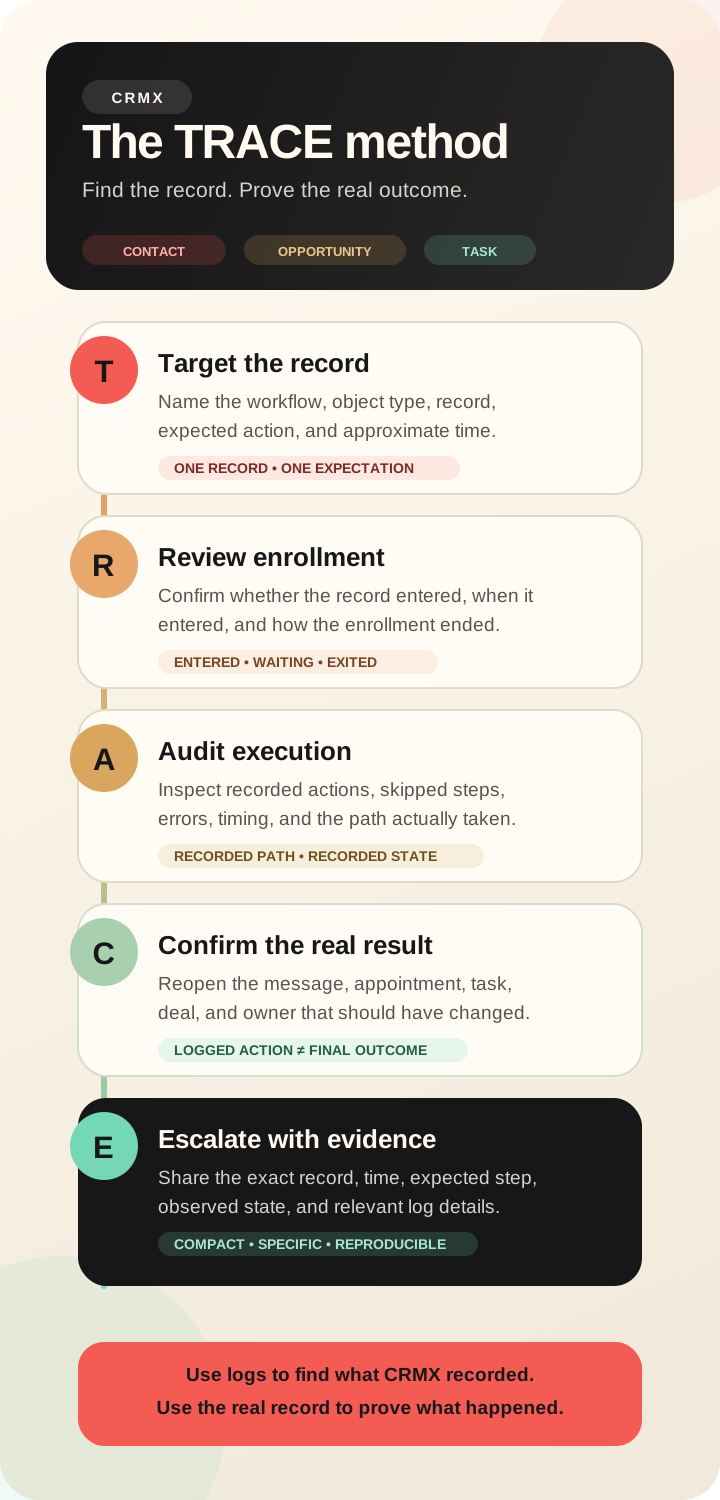
1. Target the record
Write down five things before opening the logs:
- workflow name;
- object type;
- record name or known identifier;
- expected action; and
- approximate time the event should have occurred.
“The workflow did not work” is too broad. “The Estimate Decision workflow should have created a review task for the Smith replacement opportunity shortly after it moved to Proposal Sent” gives the operator a specific record, state change, and expected result.
2. Review enrollment
Use Enrollment History to confirm whether the record entered the intended workflow.
If the record did not enroll, investigate the trigger, filters, publication state, re-entry rules, and the source event. The official workflow troubleshooting guide recommends comparing live behavior with the trigger and enrollment conditions instead of assuming a test or saved configuration proves live execution.
If the record enrolled, note the time, current state, and exit reason before moving deeper.
3. Audit execution
Use Execution Logs to inspect the actions CRMX recorded.
Look for:
- the action that should have run;
- a skipped or failed action;
- a wait step that has not finished;
- a branch that sent the record down a different path;
- an unexpected removal or completion state; and
- timing or time-zone details that explain when the action occurred.
Do not change several workflow steps at once while diagnosing one record. Preserve the evidence first, isolate the likely break, then edit the smallest relevant configuration.
4. Confirm the operational result
The log is not the final destination.
If CRMX recorded a message action, reopen the actual conversation and delivery state. If it recorded a task action, reopen the task and confirm its title, owner, due state, and completion status. If it recorded an opportunity action, reopen the opportunity and confirm the pipeline, stage, owner, value, and other intended fields.
For appointment-related follow-up, confirm the appointment and its status. For an external handoff, confirm the receiving system separately.
This is the most important boundary in the method:
A logged action is evidence of workflow processing. It is not automatic proof of delivery, completion, customer behavior, or revenue.
5. Escalate with evidence
If the issue remains, send a compact investigation packet:
- CRMX subaccount;
- workflow name;
- object type;
- record name or identifier;
- approximate event time and time zone;
- expected trigger or action;
- observed enrollment state;
- observed execution state;
- screenshot or copied error detail when appropriate; and
- the operational result you verified separately.
That packet is more useful than a generic report because another operator can reproduce the search and inspect the same record.
Example: a home-service estimate opportunity
An HVAC company moves an estimate opportunity from Inspection Complete to Proposal Sent. The workflow should create a follow-up task for the comfort advisor, wait two days, and begin an approved estimate follow-up sequence if the deal remains open.
The advisor reports that the task never appeared.
Using TRACE, the CRMX administrator:
- opens the Estimate Decision workflow;
- filters Enrollment History to Opportunities;
- searches for the estimate opportunity;
- confirms the opportunity enrolled after the stage change;
- opens Execution Logs and reviews the task-creation action;
- sees whether the action completed, skipped, or failed; and
- reopens the task list and opportunity to verify the real assignment and stage.
If the action completed but the expected task is missing, the operator does not mark the investigation finished. The next question becomes whether the task was created with a different owner, title, due date, or record association.
If the opportunity never enrolled, the operator returns to the trigger and filters. The workflow may be published, but publication alone does not prove that this opportunity met the entry conditions.
This is how object-aware search supports the CRMX Revenue Flywheel: it helps the team protect the follow-up system that moves an existing estimate toward a decision without pretending the log itself closed the sale.
Example: a coach or consultant onboarding task
A consulting firm uses an internal onboarding workflow for contactless delivery tasks. A new “Prepare strategy brief” task should notify the delivery lead, wait for an internal review state, and then move to the next operational step.
The delivery lead says no notification arrived.
The administrator:
- opens the onboarding workflow;
- filters the history to Tasks;
- searches for “Prepare strategy brief”;
- confirms that the task—not a client contact—was the enrolled record;
- inspects the notification action and recipient choice; and
- verifies the delivery lead's real notification destination and preferences separately.
The task trace may show that CRMX processed the action. That still does not prove the user saw, opened, or acted on the notification. The team should confirm the final state and assign a human owner when the client commitment depends on it.
For a broader system view, the CRMX platform connects workflows with opportunities, tasks, conversations, calendars, and reporting. The workflow history is one evidence layer inside that operating system.
Where CRMX AI employees fit
An AI employee may participate in a process that also uses opportunity or task workflows. For example, an AI receptionist may capture a lead while a separate opportunity workflow handles estimate follow-up, or an AI assistant may create internal context that later produces a task.
Object-aware logs can help an operator trace the workflow side of that handoff. They do not:
- train the AI employee;
- prove that its answer was accurate;
- grant permission to send messages or change records;
- validate its knowledge or escalation rules;
- confirm that a customer received or understood a response; or
- replace conversation review and real outcome verification.
Use the record trace to identify what the automation processed. Use the conversation, approved AI instructions, business rules, and human review to evaluate the AI employee's part of the customer experience.
Limits and rollout notes
The official changelog presents object-aware workflow history as currently available and documents the path inside Automations > Workflows. It states no beta, Labs, phased, regional, agency-only, plan, or mobile restriction for this release.
Important limits remain:
- The new visibility does not create the underlying workflow. Triggers, actions, filters, publication state, and permissions still need correct setup.
- Search starts inside a workflow. You need to identify the relevant workflow before using its Enrollment History or Execution Logs.
- The selected object matters. A contact, opportunity, and task can represent related work but remain different records.
- A record name may not be unique. Confirm the object type and other context before changing a workflow or record.
- A visible enrollment does not prove every action succeeded. Inspect the execution details.
- A successful execution does not prove the destination outcome. Verify the conversation, appointment, task, opportunity, owner, or receiving system.
- A workflow log is not a business-result report. It does not prove a customer replied, an appointment showed, a deal closed, a task was completed, or revenue increased.
- AI-related workflows need separate controls. Logs do not authorize or quality-check an AI employee.
Object-aware workflow QA checklist
Before closing an investigation, confirm:
- You opened the intended CRMX subaccount.
- You opened the intended workflow.
- You selected the correct object type.
- You found the exact contact, opportunity, or task.
- The expected trigger event actually occurred.
- The workflow was published at the relevant time.
- The record met the trigger filters and re-entry rules.
- Enrollment History shows the expected entry and exit state.
- Execution Logs show the expected action path.
- Skipped, failed, waiting, removed, or completed states were reviewed.
- Time and time-zone context match the reported event.
- The affected workflow step was inspected before editing.
- The customer-facing or operational destination was reopened separately.
- The current owner knows the next action.
- The fix was tested through an authorized real entry path when behavior matters.
- The investigation notes distinguish saved configuration, logged execution, delivered communication, completed work, and verified business outcome.
Frequently asked questions
Can CRMX search workflow activity for an opportunity with no contact?
Yes. The November 20 release states that opportunities can enroll in workflows without an associated contact, and the workflow history can be filtered to Opportunities so you can search for the deal directly.
Can CRMX search contactless task workflow activity?
Yes. Tasks can enroll without an associated contact, and Tasks is now an object filter in Enrollment History and Execution Logs.
What is the difference between Enrollment History and Execution Logs?
Enrollment History helps you determine whether a record entered the workflow and understand its enrollment state. Execution Logs help you inspect the actions recorded during a specific run.
Does a completed workflow log prove the customer received the message?
No. A workflow log shows what CRMX recorded during processing. Verify the actual conversation and delivery state separately, then confirm the customer-facing or operational outcome.
Should I search by contact, opportunity, or task?
Search the object that owns the event you are investigating. Use a contact for person-level activity, an opportunity for deal-level activity, and a task for work-item activity. If you are unsure, start with All objects and use the record-type labels to narrow the view.
Does this replace workflow testing?
No. Logs help investigate actual activity. Continue to test triggers, filters, actions, handoffs, and final outcomes before relying on a workflow for customer-facing or revenue-critical work.
What to do next
Choose one important follow-up workflow and run a 15-minute TRACE audit:
- pick one known contact, opportunity, or task;
- confirm its enrollment;
- review its recorded actions;
- verify the real operational result; and
- document any gap with the evidence another operator would need.
Then connect that workflow to the larger Revenue Flywheel. The goal is not more logs. The goal is a follow-up system your team can understand, verify, and improve.
If you want help designing the workflow, ownership rules, and proof path around your lead-to-customer system, request a CRMX strategy demo.