
New CRMX Scheduling Permissions: Control Who Can Manage Bookings
CRMX now lets account admins assign precise view and manage access across meetings, service bookings, rentals, resources, and scheduling settings.
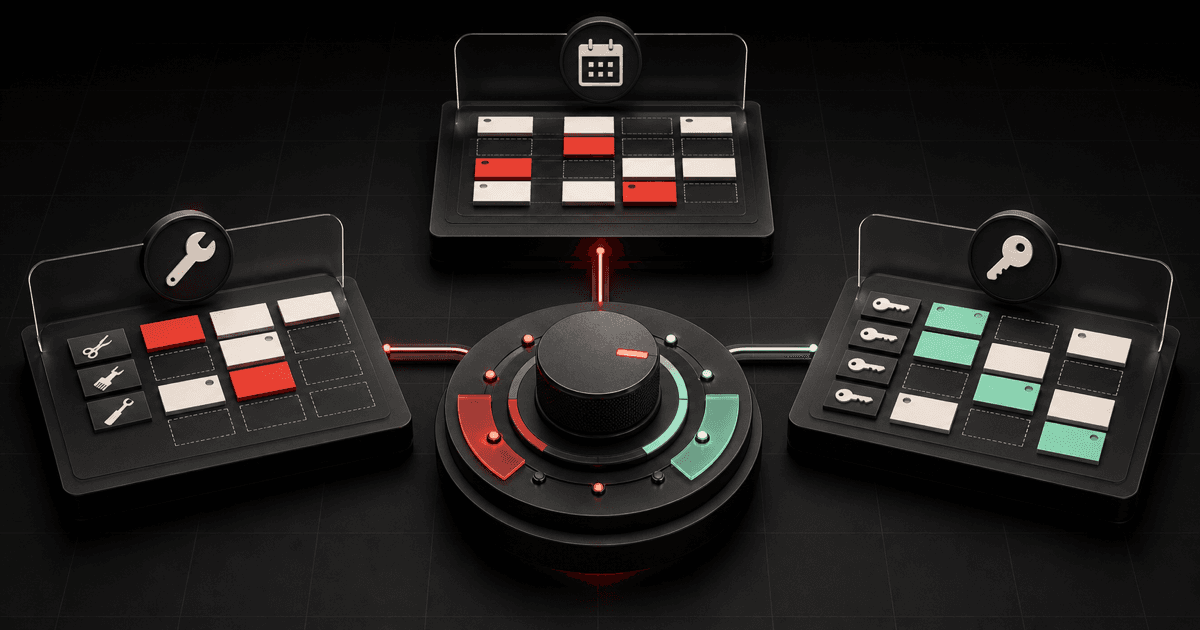
CRMX now gives account administrators more precise control over who can see and manage Meetings, Services, and Rentals. The existing scheduling permission model has been expanded so a team member can handle the bookings their job requires without automatically receiving control over setup, resources, categories, or global preferences.
The official release notice, published July 12, 2026, describes the feature as a current release and includes a subaccount setup path. It does not label the feature beta, Labs-only, phased, region-restricted, or agency-only.
That makes this a practical update for any business with multiple people touching the calendar: dispatchers, front-desk staff, service coordinators, coaches, assistants, location managers, and contractors.
What changed in CRMX
Before this update, the more granular scheduling permission model centered on Meetings. The release extends that model to Services and Rentals and adds two controls for sensitive scheduling administration.
Each scheduling area now follows the same six-part permission structure:
- View Calendars — Access to Meetings, Services, or Rentals.
- Manage setup — Calendars, services, or rental listings.
- Manage appointments — Appointments and bookings across the scheduling areas.
- Manage groups/categories — Meeting groups, service categories, and rental categories.
- Manage associated resources — Locations, staff, resources, add-ons, and related components.
- Manage preferences & global settings — Scheduling-area preferences and global settings.
The last two are new. They let an administrator separate day-to-day booking work from the settings that shape how the entire scheduling system operates.
Why this matters operationally
Broad access is easy to grant, but it creates hidden operating risk. A person who only needs to move appointments should not necessarily be able to change service setup, remove an add-on, reconfigure a resource, or alter a global preference.
More precise access can improve the business in four ways:
- Cleaner delegation: Give staff the controls required for their actual role.
- Less accidental rework: Keep structural settings away from roles that only manage daily bookings.
- Faster onboarding: Start new team members with a defined access pattern instead of full administrative control.
- Clearer ownership: Separate who runs the schedule from who designs and governs it.
The financial value is indirect but real: less manager cleanup, fewer avoidable booking mistakes, and less time spent rebuilding settings that should not have changed. The release does not promise a specific savings amount, so the right measure is your own reduction in rework and escalations.
The CRMX least-access scheduling map
A useful rule is simple: give the role enough access to complete the job, then stop. Do not start with every manage permission and work backward.
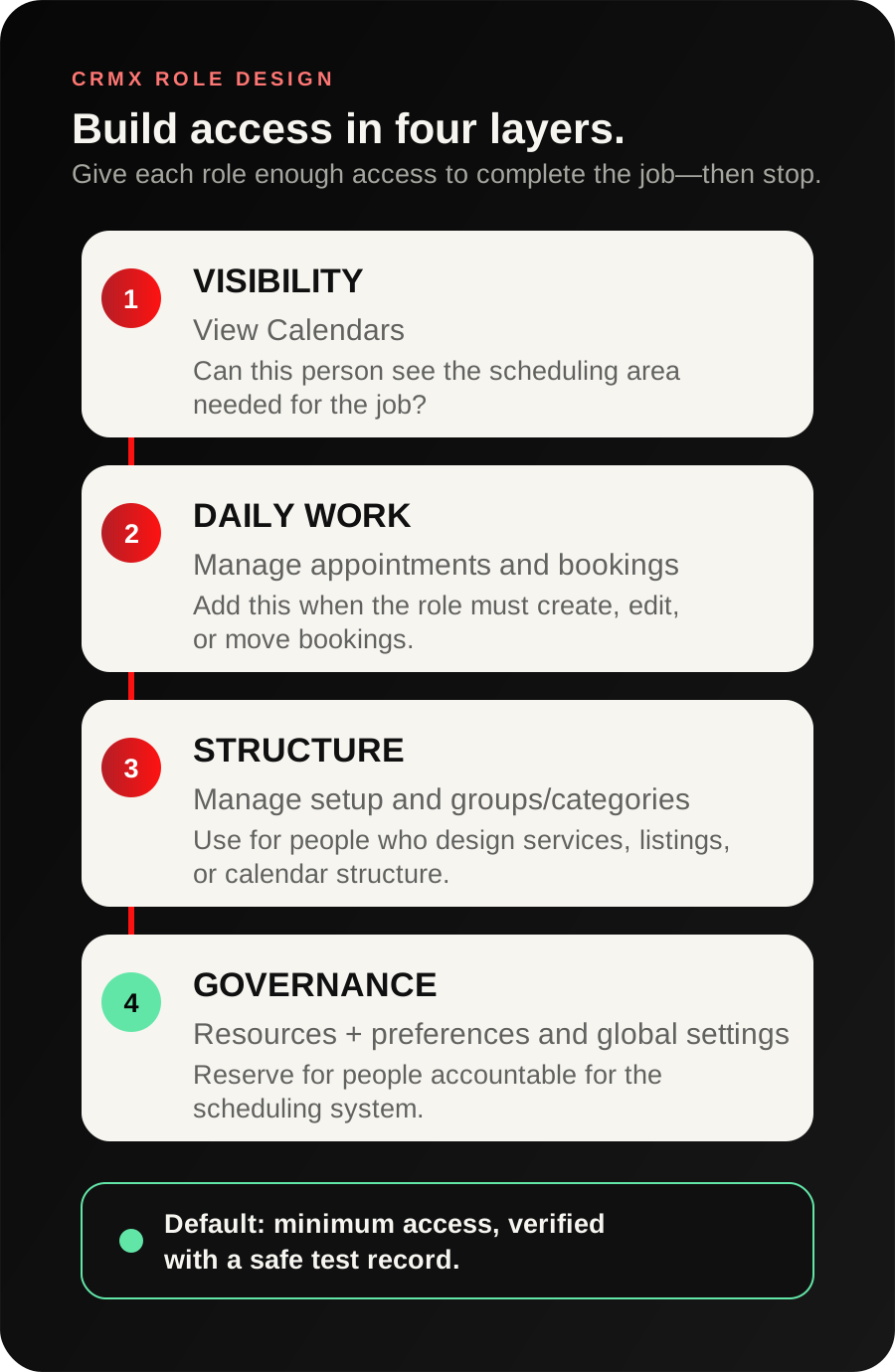
Use these four layers when deciding what a person should receive:
- Visibility: Can this person see the scheduling area required for the job?
- Daily work: Must they create, edit, or manage appointments and bookings?
- Structure: Must they change services, rental listings, groups, or categories?
- Governance: Must they control staff, locations, resources, add-ons, or global preferences?
Most frontline roles should stop at layer one or two. Operations leads may need layer three. Reserve layer four for the people accountable for the scheduling system itself.
Example 1: a home-service dispatcher
An HVAC dispatcher needs to see the service schedule, book appointments, move jobs when a technician calls out, and resolve routine scheduling conflicts.
A sensible starting pattern is:
- allow access to the Services scheduling area;
- allow appointment and booking management;
- withhold service setup, category, associated-resource, and global-preference management unless the dispatcher owns those decisions;
- use assigned-data settings when the role should only see appointments tied to specific calendars, contacts, or assignments.
The official calendar permission guide explains that assigned-data controls work alongside view and manage permissions. That distinction matters: a permission answers what the user may do, while assigned-data rules help determine which records the user may see.
The result is a dispatcher who can keep the day moving without having the keys to redesign the service catalog.
Example 2: an assistant for a coach or consultant
A coaching-program assistant may need to book discovery calls, reschedule client sessions, and monitor upcoming appointments. They probably do not need to change the coaching service structure, staff resources, or global scheduling preferences.
Start by granting the assistant view access and appointment management for the relevant scheduling area. Add category or setup access only if that person is responsible for creating programs, appointment types, or availability structures.
This keeps routine client service fast while reserving business-model changes for the owner or operations lead. For more ways to connect scheduling with the rest of the journey, see the CRMX system for coaches and consultants.
How to configure the new permissions inside CRMX
The official subaccount role guide confirms the account-level path for editing a team member. Inside CRMX:
- Open Settings.
- Go to My Staff.
- Select the team member you want to update.
- Open Roles & Permissions.
- Find the Calendars permission area.
- Grant the minimum view and manage controls required for the role.
- Save the change, sign in as a safe test user, and verify the visible menus and allowed actions before rolling the pattern out to the team.
Do not test a new role by changing a real customer booking. Use a non-customer test record and confirm both sides of the boundary: what the person can do and what they cannot do.
A five-minute permission review checklist
Review one role at a time:
- Write the role's scheduling job in one sentence.
- List the scheduling areas that role must see.
- Decide whether the role manages bookings or only views them.
- Separate booking work from setup work.
- Separate setup work from resource and global-setting governance.
- Check whether assigned-data restrictions are also needed.
- Test with a non-customer record.
- Record who owns future permission changes.
- Recheck access when the person's responsibilities change.
If several people do the same job, validate one permission pattern first. Then use the platform's documented permission-copying option to apply the proven configuration more consistently.
Where CRMX AI employees fit—and where they do not
This release is about staff user permissions. It does not, by itself, train an AI employee, define its knowledge, or authorize it to take new actions.
The useful connection is operational. A trained CRMX AI employee may answer an inquiry, collect approved details, or route a booking request. Staff permissions then help ensure the human who receives the handoff has enough access to complete the next step without receiving unrelated administrative control.
Keep those two systems separate:
- AI employee rules govern conversation behavior, approved knowledge, booking logic, and escalation.
- Staff permissions govern what signed-in team members may view and manage inside CRMX.
That separation makes the broader lead-to-customer platform easier to operate and audit.
Rollout notes and limitations
The release notice presents these permissions as available now for Meetings, Services, and Rentals and provides both agency-level and account-level setup paths. It does not state a beta flag, Labs requirement, phased schedule, regional restriction, or separate mobile rollout.
It also does not document how every existing custom role will appear after the expansion. Review critical roles before assuming an old configuration now matches your intended Services or Rentals access.
Permissions also do not replace process design. A person may have the technical ability to change a booking and still need an internal rule for when that change requires approval, customer confirmation, or manager review.
Frequently asked questions
Who benefits most from the new scheduling permissions?
Businesses with multiple schedulers, dispatchers, coordinators, assistants, location managers, or contractors benefit most. The more roles that touch appointments, services, or rentals, the more useful precise access becomes.
Do assigned-data settings still matter?
Yes. The official documentation treats assigned-data visibility as a separate control that works with module permissions. Use both when a person should have a capability but only for records connected to their assignment.
Should every manager receive all six permissions?
No. Match access to responsibility. A scheduling manager may need appointment and category control without needing global preferences. A system owner may need the full set.
Is this release marked beta or limited to a region?
No such limitation is stated in the official release notice. The notice describes current access across Meetings, Services, and Rentals and includes a subaccount setup path.
Make permissions part of the operating system
The best time to define access is before the next hire, contractor, or scheduling handoff. Start with the role that touches the most bookings, apply the least-access map, and test the result with a safe record.
If you want CRMX to map the booking, follow-up, AI employee, and human-ownership layers as one system, explore done-for-you implementation services. To hear how a trained AI employee handles a live conversation before the human handoff, audition Guy.