
CRMX Booking Windows Can Now Count Only Working Days
CRMX booking windows can now skip closed days. Learn how the new setting works, where to enable it, and which edge cases to test.

A two-day booking window sounds simple until Friday arrives.
If Saturday and Sunday are closed, those two calendar days can consume the entire window. A customer opens the booking page, sees no dates, and may assume the business has nothing available—even when Monday and Tuesday are open.
CRMX now has a Count available days only setting for Meeting Calendars, Services, and Rentals. When it is on, the date range skips days outside the availability schedule and continues until it has counted the number of working days you configured.
According to the official product changelog, the improvement was released August 27, 2026. The accompanying official setup guide confirms the exact counting behavior, setup path, default state, and edge cases.
What changed in CRMX booking windows
The Date Range setting still controls how many days a booker can see. The new toggle changes which days count toward that number.
With the toggle off, CRMX counts calendar days. Closed Saturdays, Sundays, holidays, or other unavailable dates can use part—or all—of a short window.
With the toggle on, CRMX reads the availability schedule and skips days that are not available. A two-day range can therefore mean two scheduled working days instead of the next two dates on the calendar.
The release covers:
- Meeting Calendars
- Services
- Rentals
- Round robin calendars
- Collective calendars
- Date-specific hour overrides
- Minimum scheduling notice used with the date range
The setting is off by default for existing calendars. It does not change the number entered in Date Range; it changes how CRMX counts that number.
Why this small calendar change matters
An empty widget is not a neutral experience. It can look like a dead end.
When the business actually has openings beyond a weekend or another closed day, a calendar-day window can hide those next working days. That creates avoidable friction for the person trying to book and can force the team to explain availability manually.
Counting available days can make the widget match the operating schedule more closely. It is especially useful for businesses that:
- accept appointments only on certain weekdays
- use short booking windows for estimates or consultations
- operate a rotating or part-time schedule
- close on weekends
- add special hours for events or seasonal demand
- use multiple team members with different working days
This does not promise more appointments or revenue. It removes one false booking dead end so real availability has a better chance to be seen.
The CRMX Set, Skip, Prove method
The toggle is simple. The schedule around it is where accuracy is won or lost.
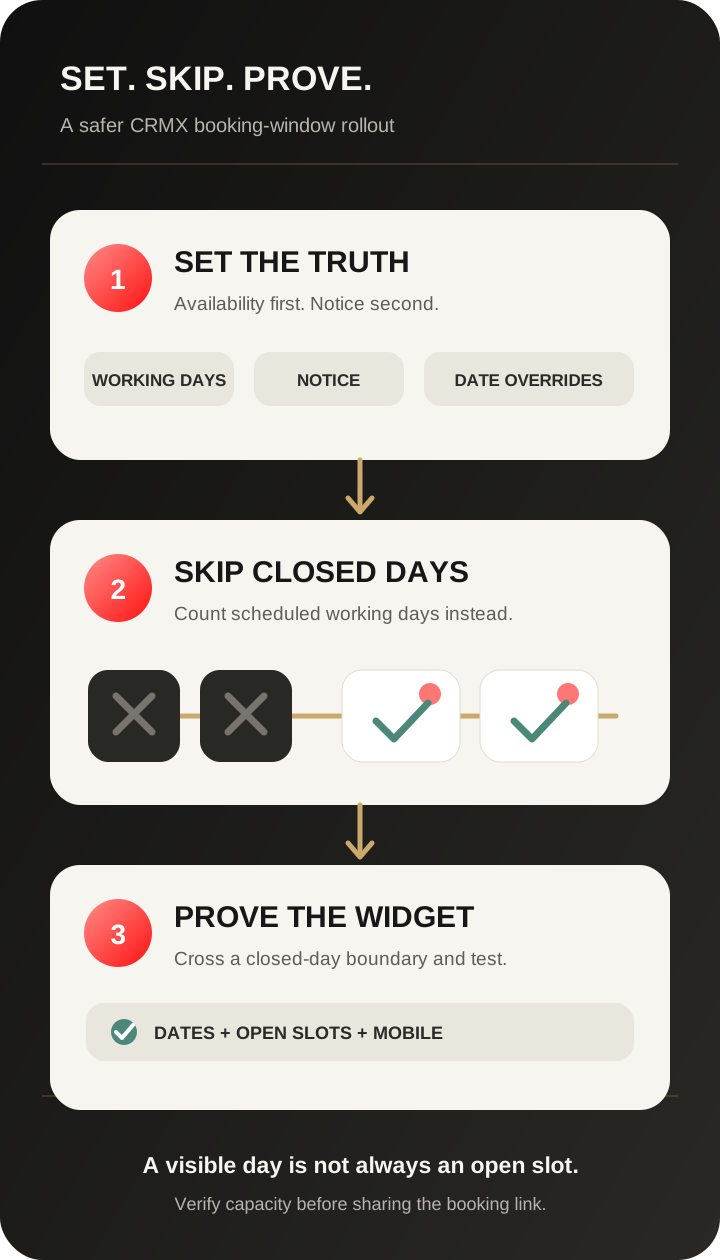
1. Set the scheduling truth
Confirm the weekly availability, minimum scheduling notice, assigned team members, and date-specific hours before changing the date-range behavior.
The new setting reads the schedule you give it. If that schedule is incomplete, CRMX cannot infer when the business actually works.
2. Skip closed days
Enable Count available days only on the appropriate Meeting Calendar, Service settings, or Rental listing. CRMX will skip scheduled closed days while it searches forward for the configured number of available days.
Minimum scheduling notice still applies first. Official help states that notice continues to count elapsed calendar days, not working days. After the notice period ends, CRMX begins counting available days.
3. Prove the public experience
Preview the real booking widget from a scenario that crosses one or more closed days. Check desktop and mobile, then confirm the dates shown contain actual open slots.
That last check matters because a fully booked day can still count as an available day. The toggle reads scheduled availability, not remaining capacity.
Example: a home-service estimate calendar
An HVAC company accepts replacement-estimate appointments Monday through Friday and uses a two-day booking range. A homeowner opens the estimate calendar on Friday afternoon.
With calendar-day counting, Saturday and Sunday consume the two-day range. The homeowner may see no bookable date.
With Count available days only enabled, CRMX skips the closed weekend and counts Monday and Tuesday as the two scheduled working days.
The setup still needs a practical test:
- Confirm the estimate calendar has Monday-through-Friday availability.
- Confirm the minimum notice allows the intended Monday slots.
- Check holiday or technician overrides.
- Preview the widget as if it were Friday.
- Confirm at least one real slot remains on each date you expect customers to see.
After a customer books, a separate home-service appointment reminder workflow can handle confirmation, preparation details, replies, and change requests. The date-range setting determines what dates can be shown; it does not send those messages.
Example: a coach or consultant with limited call days
A business consultant holds discovery calls only on Tuesdays and Thursdays and wants prospects to see the next three consultation days.
With a three-day calendar range, calendar-day counting may reveal only one of those working days—or none—depending on when the prospect visits.
With available-day counting, CRMX can scan past the other weekdays and weekends until it finds three Tuesdays or Thursdays in the configured schedule.
Before using it, the consultant should verify recurring availability, planned travel overrides, minimum notice, and remaining call slots. If a prospect misses the appointment later, that belongs in a separate consultation no-show recovery workflow.
How to turn on Count available days only
For a Meeting Calendar:
- Go to Calendars > Calendar Settings.
- Edit the calendar.
- Open Booking Rules.
- Find Date Range.
- Turn on Count available days only.
- Save the calendar.
For Services, go to Services > Global Settings > Service Settings, then find the range-based Booking Window and enable the toggle. The official Services guide explicitly states that the toggle applies to range-based windows, not fixed date-based windows.
For Rentals, edit the listing and open Booking Settings, then find Date Range and enable the toggle.
Use the same controlled rollout for each calendar:
- make one change at a time
- save it
- preview the public booking page
- test across a closed-day boundary
- test a date-specific override
- test minimum scheduling notice
- test assigned-user availability when the calendar is round robin or collective
- confirm the visible dates still contain bookable time slots
Limitations and rollout notes
Keep these boundaries visible:
- Existing calendars do not change automatically. The toggle is off by default.
- The schedule must be configured. Official help says a calendar with no availability will show no available dates when the toggle is on.
- Fully booked days still count. A day in the availability schedule can count even when every slot is already taken.
- Minimum scheduling notice counts calendar days. The notice period is applied first; available-day counting begins afterward.
- Date-specific hours override the weekly schedule. Added hours can make a normally closed date count, while blocked hours can remove a normally open date.
- Team calendars use assigned-user schedules. For round robin and collective calendars, a day counts when at least one assigned team member has scheduled availability.
- Services require a range-based window. The official Services guide says fixed date-based windows are unaffected.
- The toggle changes date visibility, not the rest of the customer journey. It does not create capacity, send reminders, qualify the lead, assign ownership, or prove a message was delivered.
- No restricted rollout is stated. As of August 28, 2026, the official release and help documentation list no beta, Labs, phased, regional, agency-only, or plan restriction.
Where this fits with CRMX AI employees
The connection is straightforward when a CRMX AI employee offers a booking link during a call or conversation: the customer-facing widget follows the calendar's booking rules.
The AI employee does not override the Date Range, availability, minimum notice, or remaining slots. Its job is to use the approved calendar, explain the next step accurately, and route exceptions to a human when needed.
That separation keeps the wider CRMX platform honest: calendar configuration controls what can be booked, workflows control what happens around the appointment, and people or trained AI employees own the conversation within their approved boundaries.
Available-day booking-window checklist
Before enabling:
- Confirm weekly working days and hours.
- Confirm the Date Range number matches the intended customer choice.
- Confirm minimum scheduling notice.
- Review date-specific hours for holidays, travel, events, or seasonal coverage.
- Review each assigned team member on round robin or collective calendars.
During testing:
- Open the widget from a day immediately before one or more closed days.
- Confirm closed days are skipped.
- Confirm the expected number of scheduled working days appears.
- Confirm minimum notice is still respected.
- Confirm date-specific additions and blocks behave correctly.
- Confirm visible days include real open slots.
- Test desktop and mobile.
After enabling:
- Recheck the widget whenever recurring availability changes.
- Recheck before holidays or temporary closures.
- Keep reminder, reschedule, cancellation, qualification, and follow-up logic in their own tested systems.
For teams that divide scheduling administration across several people, pair this with CRMX scheduling permissions so each staff member has the access needed for the calendars they actually manage.
Frequently asked questions
What does Count available days only do in CRMX?
It changes a Date Range from counting every calendar day to counting only days included in the configured availability schedule.
Does it change my Date Range number?
No. A five-day range remains five days. The toggle changes whether those five days are calendar days or scheduled available days.
Does minimum scheduling notice count only working days too?
No. Official help says minimum scheduling notice continues to count calendar days. CRMX applies the notice first, then counts available days for the booking window.
Will a fully booked day be skipped?
No. The setting reads scheduled availability, not live remaining capacity. A fully booked day can still count and appear without an open time slot.
Does it work with round robin and collective calendars?
Yes. The official release says a day counts when at least one assigned team member has availability configured for that day.
Does it work for Services and Rentals?
Yes. The official release includes Meeting Calendars, Services, and Rentals. For Services, official help says it applies to range-based booking windows and not fixed date-based windows.
Make the booking window match the days you actually work
Start with one short-range calendar where closed days can hide real availability. Set the schedule truth, enable the toggle, and prove the public widget across a weekend or another closed-day boundary.
If you want help connecting calendars, customer conversations, Workflows, reminders, AI employees, and human ownership into one reliable booking system, explore CRMX services.