
CRMX Can Now Automate Video-Testimonial Follow-Up
CRMX can now trigger workflows from video testimonials, route review context, thank customers, and control which submissions appear publicly.

CRMX can now start a workflow the moment a customer successfully submits a video testimonial.
That workflow can notify the right person, send a thank-you, create a task or note, and carry the reviewer, collector, consent state, submission time, and video link into supported actions. CRMX also adds a manual-approval option for testimonial widgets and clearer controls for showing or hiding individual submissions.
The change was announced in the official product changelog on September 18, 2026. It closes an important operational gap between asking for a customer story and deciding what should happen after the story arrives.
The useful distinction is simple:
- Submission is an event. CRMX can respond to it immediately.
- Publication is a decision. Your team should still own whether a video becomes public.
What changed in CRMX video testimonials
The release adds two connected control layers: an automation trigger for the moment of submission and a visibility decision for the website widget.
A submission can now start a workflow
The new Video Testimonial Received trigger starts a CRMX workflow after a video is successfully submitted through a Video Testimonial Collector.
The official trigger guide documents two optional filters:
- Marketing Consent lets the workflow branch on the consent state captured with the submission.
- Video Collector lets different collectors enter different workflows or paths.
Without those filters, the trigger can respond to eligible submissions across collectors. With them, a business can separate campaigns, service lines, programs, events, or internal review processes.
Testimonial details can move into the next action
The workflow can use seven testimonial-specific values in supported actions:
- reviewer name;
- reviewer email;
- reviewer phone;
- marketing consent;
- submitted at;
- collector name;
- video link.
Those values make an internal notification useful. Instead of telling the team only that a submission exists, the workflow can identify who submitted it, which collector captured it, when it arrived, what consent state was recorded, and where the reviewer can open the video.
They can also support notes, tasks, thank-you messages, webhooks, and other compatible workflow steps.
Widget visibility now has a deliberate approval mode
The release adds a choice under the Reputation widget settings:
- Auto-publish new video testimonials keeps the current default behavior and displays new submissions automatically.
- Require manual approval before publishing holds new submissions for review before they appear.
The Responses area also makes it easier to identify unreviewed submissions, see what is currently visible, and show or hide an individual testimonial.
This is a display control, not a content or authorization guarantee. Manual approval does not edit the video, verify every statement, or prove that the business has completed every review required for its intended use.
Why the release matters operationally
Video testimonials can carry more context than a star rating or one-line review, but they also create more work.
Someone must notice the submission. Someone should thank the customer. Someone must review the video, confirm where it belongs, decide whether it should be shown, and verify that the widget reflects the decision. Without a defined path, the submission can sit unseen or become public by default before the team has reviewed it.
The new trigger turns arrival into a trackable operating event. The new visibility controls turn public display into an explicit choice.
That helps the businesses most likely to benefit:
- teams that collect testimonials after a completed job, milestone, program, or event;
- businesses with several collectors for different services or audiences;
- operators who need one person to own review and publication;
- teams that want prompt customer appreciation without making every submission public automatically;
- CRMX implementers building a complete post-sale customer journey.
The financial value is indirect. A reliable process can preserve staff time and make hard-won customer proof easier to review and use, but the release does not guarantee more sales, better conversion, or additional revenue.
Use the CRMX WATCH loop after every submission
The product provides the trigger and controls. The CRMX WATCH loop gives the team an operating method.
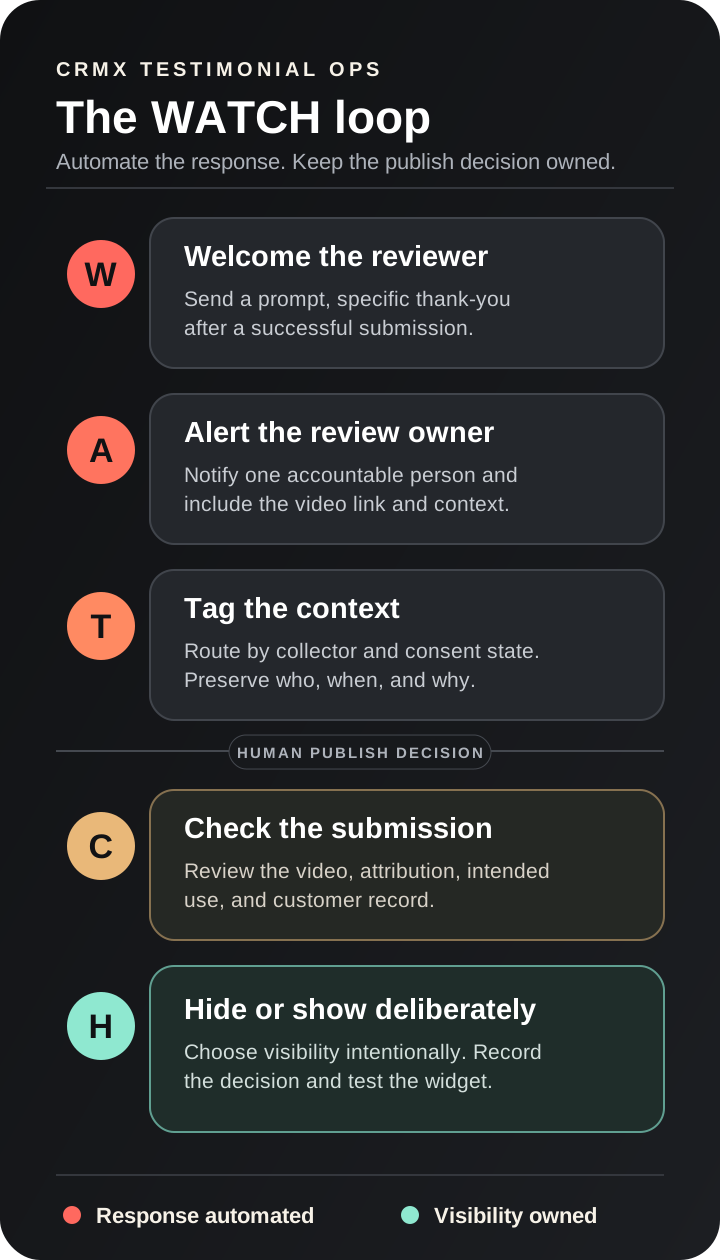
1. Welcome the reviewer
Send a prompt thank-you after the successful submission.
Keep it specific. Acknowledge the time it took to record the video and tell the customer what happens next. Do not promise that the video will be published.
If the business already has a person actively responding to customers, the workflow can create a task instead of sending an automatic message. The important outcome is a timely acknowledgment with a clear owner.
2. Alert the review owner
Notify one accountable person or team.
Include the reviewer name, collector name, submission time, consent state, and video link so the owner can act without searching through several screens. If more than one person receives the alert, name the person who makes the final visibility decision.
A notification without ownership is only another inbox item.
3. Tag the context
Use the collector and consent state to preserve why the video was requested and how it entered CRMX.
A testimonial requested after an HVAC installation may need a different review path from a testimonial requested after a maintenance visit. A coaching-program completion story may belong to a different page than feedback from a workshop.
Treat Marketing Consent as workflow context, not as a complete publishing decision. Your team still needs to confirm the intended use and whatever internal approval process applies to the business.
4. Check the submission
Open the video and review the actual content before making it public.
Confirm:
- the video plays from the supplied link;
- the reviewer identity and customer record are correct;
- the collector matches the intended campaign or service;
- the content is relevant to the page or widget where it may appear;
- the requested use and attribution are understood;
- no private, inaccurate, or inappropriate material needs attention;
- the person responsible for the decision records the outcome.
This is the human judgment step. A workflow can route the evidence, but it cannot make every business, editorial, or authorization decision for you.
5. Hide or show deliberately
Choose the visibility state and verify the result.
If the team uses manual approval, approve the submission only after the review is complete. If the team keeps auto-publish on, define who will monitor new submissions and how quickly an unsuitable video can be hidden.
Then open the actual widget on the relevant page. Confirm that the intended video is visible or hidden, the layout works on mobile and desktop, and no unrelated submission appears because the wrong collector or widget source was selected.
The stop rule is clear: arrival can automate the response, but arrival alone should never be treated as a complete publish decision.
Example 1: a home-service customer story
An HVAC company asks customers for a short video after a completed installation.
The collector asks three focused questions: what problem the homeowner had, what the team did, and what changed after the work was complete. The official video-testimonial guide says customers can record or upload from desktop or mobile without installing an app.
When a homeowner submits the video, CRMX runs this path:
- send a thank-you that explains the team will review the story;
- notify the marketing owner with the homeowner name, collector, consent state, and video link;
- create a review task due the next business day;
- add a note to the customer record with the submission context;
- keep the video out of the website widget until the owner completes the review.
The owner checks that the video belongs to the installation collector, confirms the intended attribution, and verifies that the homeowner did not share private information. After approval, the owner shows it on the installation-results widget and checks the live page on a phone and desktop browser.
This workflow does not manufacture proof. It makes sure real customer proof receives an owned response and review.
Example 2: a coach or consultant program milestone
A business coach creates separate video collectors for a live workshop, a group program, and one-to-one consulting.
A client submits a program-completion video. The Video Collector filter routes it to the group-program workflow rather than the workshop path.
CRMX then:
- thanks the client for sharing the experience;
- alerts the client-success owner;
- includes the reviewer details, collector, submitted time, consent state, and video link;
- creates a task to review the story and confirm its intended use;
- leaves the video hidden until the owner decides which program page, if any, should display it.
If the client asks a question in reply to the thank-you message, a human owns that conversation. The workflow can preserve the context, but the customer should not be trapped in an automated testimonial sequence after starting a real conversation.
For the broader handoff from sale to client experience, see the CRMX HANDOFF Map for coach onboarding.
How to configure the new workflow in CRMX
Use one collector and one test submission first.
- Open the correct subaccount.
- Go to Automation → Workflows.
- Create a workflow or open the workflow that should own new video testimonials.
- Add the Video Testimonial Received trigger.
- Give the trigger a name that identifies its job.
- Add a Video Collector filter if this workflow should handle only one collector.
- Add a Marketing Consent filter only when the workflow genuinely needs a different path for that recorded state.
- Add the immediate customer acknowledgment or the internal task that owns it.
- Add an internal notification with the useful testimonial values.
- Create the review task or note and assign one owner.
- Save and publish the workflow only after its messages, owners, fields, and stop conditions are verified.
- Under Reputation → Widgets, choose auto-publish or manual approval for new video testimonials.
- Submit a fresh internal test video through the real collector link.
- Verify the workflow execution, thank-you, alert, task, record context, Responses state, and live widget behavior.
Do not test only by clicking around inside the builder. Use the same collector experience a customer will receive so the team proves the trigger, data, response, ownership, and display path together.
What the update does not prove
The release is useful because it connects submission, workflow context, and visibility. Keep its limits equally visible.
- A consent value is not the whole approval process. It is a field the workflow can use. Do not present it as legal advice or complete authorization for every use.
- A successful trigger does not prove delivery. Review the workflow execution and the actual customer-facing channel.
- An internal notification does not prove review. Give the task an owner, due state, and completion evidence.
- Manual approval controls widget visibility. It does not edit the video or validate every claim inside it.
- Auto-publish is the documented default. Teams that want moderation must deliberately choose manual approval.
- Show and hide controls affect display. Verify the real widget rather than assuming the response status changed every public surface.
- Collector filters depend on correct setup. A misidentified collector can route the submission to the wrong team or workflow.
- The trigger is post-submission. It does not improve the questions, request timing, or customer experience that determines whether someone completes the collector.
The release notice lists no beta, Labs, phased, regional, agency-only, or plan restriction. It presents the trigger and visibility controls as current behavior for video testimonials in CRMX. Availability of downstream actions still depends on the actions and channels configured in the subaccount.
Where CRMX AI employees fit
An AI employee can help only when the role is useful and bounded.
For example, an AI employee may answer a customer's question after the thank-you message, route a request to a person, or preserve conversation context in the same customer record. It should not decide on its own that a testimonial is approved for public use, invent an attribution, or rewrite what the customer said.
The workflow can alert and organize. The trained role can continue an appropriate conversation. The accountable person still owns the publish decision.
Video-testimonial workflow QA checklist
Before calling the process ready, confirm:
- The correct Video Testimonial Collector exists and has focused questions.
- The trigger uses the intended collector and consent filters.
- The thank-you message is accurate and does not promise publication.
- One person owns the review and visibility decision.
- The internal alert includes the reviewer, collector, consent state, time, and video link.
- The review task has a meaningful due state.
- Customer replies reach a monitored CRMX conversation.
- Auto-publish or manual approval is chosen deliberately.
- The team understands that Marketing Consent is a routing field, not complete approval by itself.
- A fresh test submission enters the workflow.
- The video link opens and the expected values populate.
- The thank-you, alert, note, and task appear as intended.
- The Responses area shows the expected review and visibility state.
- The public widget matches the decision on mobile and desktop.
- The test date, test contact, collector, expected path, and result are recorded.
Frequently asked questions
What starts the Video Testimonial Received workflow?
A successful submission through a Video Testimonial Collector starts the trigger. The workflow can apply optional filters for the collector and Marketing Consent state.
Can the workflow thank the customer automatically?
Yes. The official documentation lists email and SMS among the supported follow-up actions. Use a message that acknowledges the submission without promising publication, and make sure replies have an owner.
Does Marketing Consent mean the video is approved for every public use?
Do not assume that. CRMX exposes the recorded Marketing Consent state as a filter and custom value. Treat it as one input to the business's review process, not as legal advice or universal authorization.
Are new video testimonials held for review by default?
No. The release says auto-publish remains the default behavior. Choose Require manual approval before publishing when the team needs to review each submission before it appears on the widget.
Can I show or hide one testimonial without rebuilding the widget?
Yes. The release adds individual show and hide controls in Video Testimonials → Responses and makes the current visibility state easier to see.
Do customers need an app to record the video?
No. The official video-testimonial guide says a customer can record or upload from a modern desktop or mobile device through the collector link without installing an app.
Turn customer proof into an owned process
The new CRMX trigger removes the gap between a video arriving and the team acting on it. The new visibility controls make it easier to separate automatic acknowledgment from deliberate publication.
Use both.
Welcome the reviewer, alert the owner, tag the context, check the submission, and hide or show it deliberately. That is how a useful product update becomes part of the CRMX Revenue Flywheel: the customer story receives the same ownership, follow-up, and evidence standards as every other important customer event.
Explore the CRMX platform to see how workflows, conversations, customer records, reputation tools, and AI employees work together. When you want help building the complete post-sale journey, request a live CRMX strategy demo.