
CRMX Can Now Filter HubSpot Records Before You Import
CRMX HubSpot imports can now filter records by created or modified date, preview the selected count, and support a safer staged migration.

CRMX can now filter HubSpot records before an import begins.
Instead of bringing every contact, deal, company, and task into a CRMX subaccount at once, you can narrow each supported object by its HubSpot created date or last modified date. The import preview updates the selected record count before you confirm the run.
The improvement was announced in the official product changelog on October 22, 2026. The current official HubSpot import guide documents the filter builder, supported objects, date fields, preview counts, migration path, and important limitations.
This is useful because a CRM migration is not only a transfer problem. It is a scope, risk, and operating-continuity problem. Moving the records your team needs first can make the first cutover easier to inspect without pretending that a smaller import is automatically a complete migration.
What changed in CRMX HubSpot imports
The Preview and import step now adds record filters for four HubSpot object types:
- Contacts;
- Deals, which import into CRMX as Opportunities;
- Companies;
- Tasks.
For each object, you can filter on two fields:
- HubSpot Created Date;
- HubSpot Last Modified Date.
The filter builder supports relative periods, exact dates, rolling ranges, and nested conditions using AND or OR. You can apply a filter to one object or reuse the same conditions across all selected objects.
CRMX then shows the records found and the records selected. That preview gives the migration owner a checkpoint before Confirm and start import.
Filters are optional. Leaving them empty imports the full supported set. The official release also notes one detail that can change a cutover count: In the last excludes today. If today's records must be included, use date logic that explicitly covers today and verify the displayed range before continuing.
Why selective imports matter operationally and financially
A full-history migration may still be the right final destination. It is not always the right first move.
A staged import can help a team answer narrower questions first:
- Do the fields map the way the team expects?
- Do recent contacts and open work appear in the correct place?
- Are deals connected to the right people, pipelines, and stages?
- Are tasks, notes, and associations usable after the transfer?
- Can the team continue current follow-up without searching through years of inactive data?
That can reduce avoidable cleanup and make a cutover easier to review. It can also protect the time already invested in current leads and customers by putting the most relevant records in front of the operating team first.
The filter does not guarantee a faster migration, lower cost, clean data, preserved associations, or successful follow-up. It gives the migration owner a more precise scope and a visible count before the import starts.
The businesses most likely to benefit are:
- teams moving from HubSpot into CRMX;
- businesses with years of archived or inactive CRM records;
- operators who want to pilot one recent time window before importing history;
- teams that need current tasks and active records available first;
- CRMX implementers who need a reviewable migration sequence instead of one large irreversible-feeling event.
Use the CRMX SELECT import method
The release supplies the filter controls. The CRMX SELECT method turns them into a migration checkpoint.
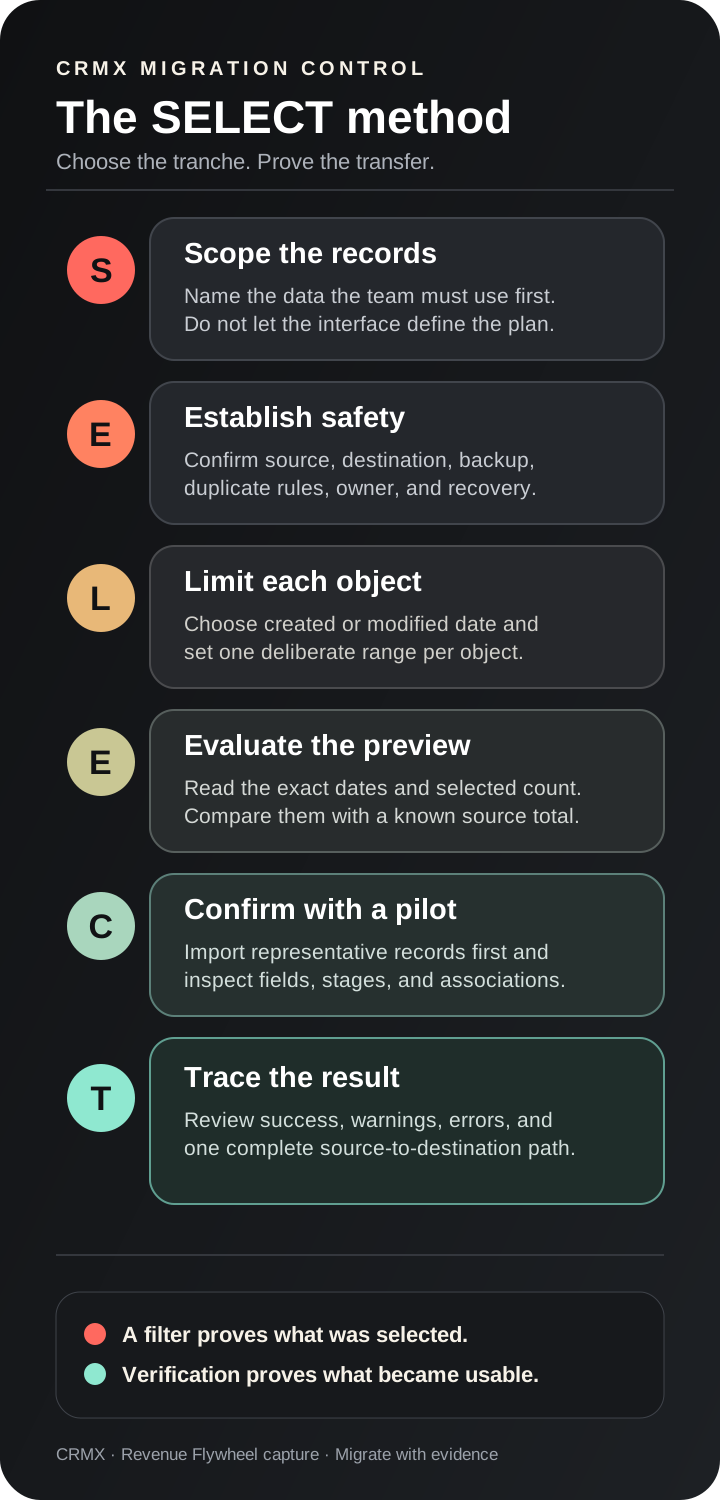
1. Scope the business-critical records
Define what must be usable first.
For one business, that may be contacts and opportunities modified during the last 12 months. For another, it may be every current task plus contacts created since a recent campaign launch. Write the scope in plain language before opening the importer.
Date filters cannot identify every business state. They do not currently filter by owner, pipeline stage, lifecycle stage, tag, product, or lead status. If the desired scope depends on one of those fields, date filtering alone is not enough.
2. Establish a safe destination
The official guide recommends using a clean account when possible, backing up the source, reviewing field mappings, and testing in a new or non-production location before importing into an active location.
Treat those as migration controls, not setup trivia.
Before the first run, record:
- the CRMX subaccount receiving the data;
- the HubSpot account supplying it;
- the objects in scope;
- the person authorized to approve the cutover;
- the backup location;
- the duplicate-handling decision;
- the rollback or recovery plan if the result is not usable.
3. Limit each object deliberately
Open the pencil icon for a records row in Preview and import. Choose HubSpot Created Date or HubSpot Last Modified Date, then define the date condition.
Use Created Date when the record's arrival window matters. Use Last Modified Date when older records with recent activity also belong in the cutover.
Do not apply the same filter to every object merely because the button exists. Contacts, deals, companies, and tasks may need different time windows. Reuse a filter only when the scope is genuinely the same.
4. Evaluate the preview count
Read the date range shown by the filter builder, then compare the estimated selected count with a known source count in HubSpot.
Ask:
- Is the result much larger or smaller than expected?
- Does In the last exclude today's work from the count?
- Did an AND condition become too narrow?
- Did an OR condition admit more history than intended?
- Are Deals selected without the Contacts they require?
- Is the team counting records or assuming that all associations will transfer perfectly?
The preview is a scope check. It is not proof that every selected record will import successfully.
5. Confirm with a pilot
Start with a limited, representative import in the approved destination.
Choose records that exercise the structures the business depends on: contact fields, opportunity stages, company relationships, tasks, notes, emails, and critical associations. After the pilot, inspect the imported records inside CRMX rather than relying only on the success percentage.
A useful pilot includes both ordinary and difficult records: one clean contact, one contact with several fields, one opportunity with associations, one task, and one record expected to expose a known limitation.
6. Trace results before expanding
The importer runs in the background and records each run in Import history. Open the details, inspect successes, warnings, and errors, then export the error list when correction is needed.
Trace a sample from source to destination:
- confirm the contact exists once;
- inspect important custom fields;
- confirm the opportunity, pipeline, and stage;
- check the expected company or record associations;
- review the task, note, or email behavior that matters;
- record the actual result;
- fix the scope or mapping before the next tranche.
Expand only after the pilot produces usable records and the team understands the exceptions.
Example 1: a home-service company moves current sales work first
An HVAC company has seven years of HubSpot history, but the office needs current estimates, active customer conversations, and open tasks available in CRMX before the next Monday morning meeting.
The migration owner defines a first tranche:
- Contacts modified during the last 18 months;
- Deals modified during the last 24 months;
- Companies modified during the last 24 months;
- Tasks modified during the last 90 days.
Those are planning examples, not default recommendations. The team chooses its actual windows from its sales cycle, service-agreement history, reporting needs, and retention obligations.
Before importing, the owner checks the displayed date ranges and selected counts. Because In the last excludes today, today's new service requests receive an explicit date check rather than being assumed into the rolling range.
The pilot then traces several records: a replacement estimate, a maintenance-plan customer, a company account with several contacts, and an open call task. The office confirms the records, owners, stages, and associations before importing the next tranche.
After cutover, the team uses its normal home-service lead follow-up system only after the imported data and workflow entry rules have been tested. An imported record is context, not automatic permission to restart every old conversation.
Example 2: a consultant stages active client and pipeline context
A consultant uses HubSpot for workshop leads, applications, proposals, current clients, and a long archive of newsletter subscribers.
The first CRMX import is designed for operating continuity, not historical completeness. The consultant selects contacts and deals modified since the current planning year began, plus recent tasks that still have an owner.
The preview count is compared with known current work. The pilot checks one workshop lead, one proposal-stage opportunity, one client company, and one follow-up task. If a lifecycle state cannot be isolated by the available date fields, the consultant does not pretend the filter solved it. That segment receives a separate migration plan.
Once the current pipeline is verified, the consultant can plan a second tranche for longer-term nurture records. The CRMX LATER Path explains how to design that continuing follow-up, but imported history should enter it only after eligibility, ownership, consent, and stop rules are confirmed.
How to filter a HubSpot import in CRMX
Use the exact CRMX subaccount approved for the migration.
- Open Contacts, Companies, or Opportunities.
- Open Import and choose Import data.
- Select Connect HubSpot and authenticate the authorized HubSpot account.
- Choose the supported objects you intend to migrate.
- Continue to Preview and import.
- Select the pencil icon on a records row, such as Contacts - records.
- Choose HubSpot Created Date or HubSpot Last Modified Date.
- Select the condition and date or rolling range.
- Add a nested filter only when the scope requires AND or OR logic.
- Check the exact date range shown in the panel.
- Select Apply filters for that object, or Apply filters to all objects only when the same scope is correct for each.
- Review the found and selected counts.
- Confirm the pilot import.
- Open Import history and inspect the object and record results.
- Correct errors and verify representative records before expanding the migration.
Limits and rollout notes
The changelog and dedicated help guide present filtered HubSpot imports as current subaccount behavior. Neither source states a beta, Labs, phased, regional, agency-only, or plan restriction for the filtering improvement.
Important boundaries remain:
- Only two filter fields are currently documented. The filters use HubSpot Created Date and HubSpot Last Modified Date.
- Only four record objects are filterable. Contacts, Deals, Companies, and Tasks support the new date filtering.
- In the last excludes today. Check the displayed range and handle today's records deliberately.
- Filters are optional. No filter means the supported records remain eligible for import.
- Deals require Contacts. Selecting Deals also selects Contacts, and an opportunity without an associated contact cannot be imported.
- Recurring tasks are not supported. A task may also have association limits.
- Imported emails are read-only. Do not describe the result as a fully editable email history.
- Custom-field conflicts can fail. Matching field keys and mismatched HubSpot names and labels require review.
- Associations have platform limits. Inspect critical relationships after import.
- A repeated import can create duplicates in some recovery paths. The official guide notes that deleting, re-importing, and later restoring a contact can create duplicates.
- A selected count is not a completed migration. Warnings, errors, associations, mappings, and representative records still need review.
Where CRMX AI employees fit
An AI employee depends on accurate context, clear ownership, and approved operating rules. A selective import can help put current leads, customers, opportunities, and tasks into the CRMX system those roles use.
The import does not train an AI employee, approve it to contact imported records, prove consent, or verify that a workflow should run. Before activation, test the source data, assignment rules, duplicate handling, workflow triggers, suppression rules, and human escalation path.
Use the filter to control the migration scope. Use the CRMX Revenue Flywheel to define what happens after a verified record enters the operating system.
HubSpot import QA checklist
Before expanding a filtered import, confirm:
- The source HubSpot account and destination CRMX subaccount are named.
- The source data has an approved backup.
- The business-critical first tranche is written in plain language.
- Each selected object has a justified date field and time window.
- The displayed range includes every intended day.
- Today's records are handled deliberately.
- AND and OR conditions match the written scope.
- The found and selected counts are compared with a known source count.
- Deals include the Contacts they require.
- Custom-field keys and labels have been reviewed.
- A representative pilot ran before the full tranche.
- Successes, warnings, and errors were inspected in Import history.
- Critical associations were checked inside CRMX.
- One source record was traced to one destination record.
- Duplicate behavior was reviewed before a rerun.
- Workflows and AI employees remain off the imported path until their entry and stop rules are tested.
- The migration owner recorded the date, scope, counts, exceptions, and approval for the next tranche.
Frequently asked questions
Which HubSpot records can CRMX filter before import?
The current release supports record filters for Contacts, Deals, Companies, and Tasks.
Which fields can the import filters use?
The documented fields are HubSpot Created Date and HubSpot Last Modified Date. The feature does not currently document owner, lifecycle-stage, pipeline-stage, tag, or status filters.
Can I give each object a different date window?
Yes. You can configure the objects separately. The interface also offers Apply filters to all objects, but use it only when the same date logic is correct for every selected object.
Does In the last include records from today?
No. The official release says In the last excludes today. Read the exact range displayed in the filter panel before starting the import.
Can I see how many records will import before I confirm?
The preview updates the records found and selected when filters are applied. That count helps confirm scope, but the final result can still include warnings or errors that require review.
Does a filtered import prevent duplicates?
No. Filtering narrows the eligible source records. Duplicate handling, deleted-and-restored records, field conflicts, repeat runs, and destination state still require a deliberate migration plan.
Should I import everything at once?
Not automatically. A full import may be appropriate, but the official guide recommends backup, mapping review, a clean account when possible, and testing in a new or non-production location. The SELECT method uses a representative pilot before expanding.
Move the records your team can actually use
The best first import is not necessarily the biggest one. It is the one with a defined scope, a known destination, a visible count, a representative pilot, and a verified result.
Scope the records. Establish the destination. Limit each object. Evaluate the preview. Confirm with a pilot. Trace the outcome.
That is how selective HubSpot imports support the CRMX platform: current context can move into one lead-to-customer system without confusing a filter with a finished migration.
If you want help planning the migration, follow-up paths, workflows, and AI employees around that data, request a live CRMX strategy demo.